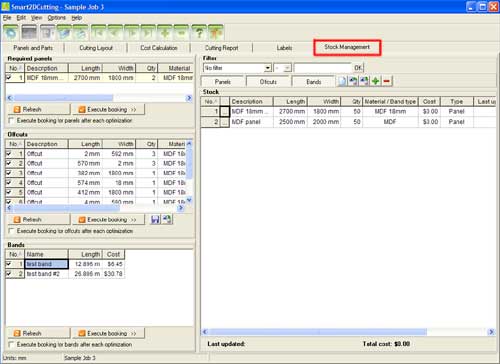
Stock Management |
| This is the area where information about
available panels is displayed. To reach this section select "Stock
Management" tab in the main window. |
| |
|
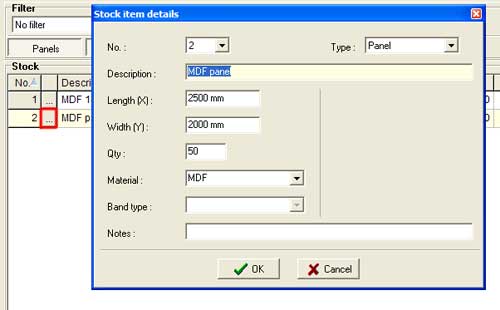
The Stock Management role is to help you to keep track of used panels, bands and reusable offcuts. To change a field value, double click the field to switch it to edit mode or just type the new value and press [Enter] to validate. The cursor will move to the next field. Alternatively, you can edit stock details by clicking the edit button  on the left of the stock item name.
  To insert a new stock item press the [Insert] key or use the navigation bar from the top of the application window. The "Stock Management" window is made up of 2 sections: |
Booking The booking process consists of two main steps:
|
| The booking process for panels will:
Prior to booking, panels can be added or removed from the list. |
| The booking process for offcuts will:
Prior to booking, offcuts can be added or removed from the list. |
| The booking process for bands will:
Prior to booking, bands can be added or removed from the list. |
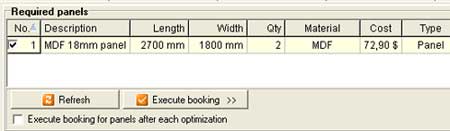
| The booking process can be automated
by checking the options "Execute booking for panels after each optimization"
and/or "Execute booking for offcuts after each optimization" and/or
"Execute booking for bands after each optimization". |
 |
Please note that once executed, the booking process can not be rolled back. |